Odoo in Arabic: Interface, Bilingual Invoices, Reports and Search for UAE Teams
Odoo Arabic for UAE teams: what Odoo translates and what it doesn't, bilingual invoices, Arabic reports and fonts, Arabic search, dates and training.
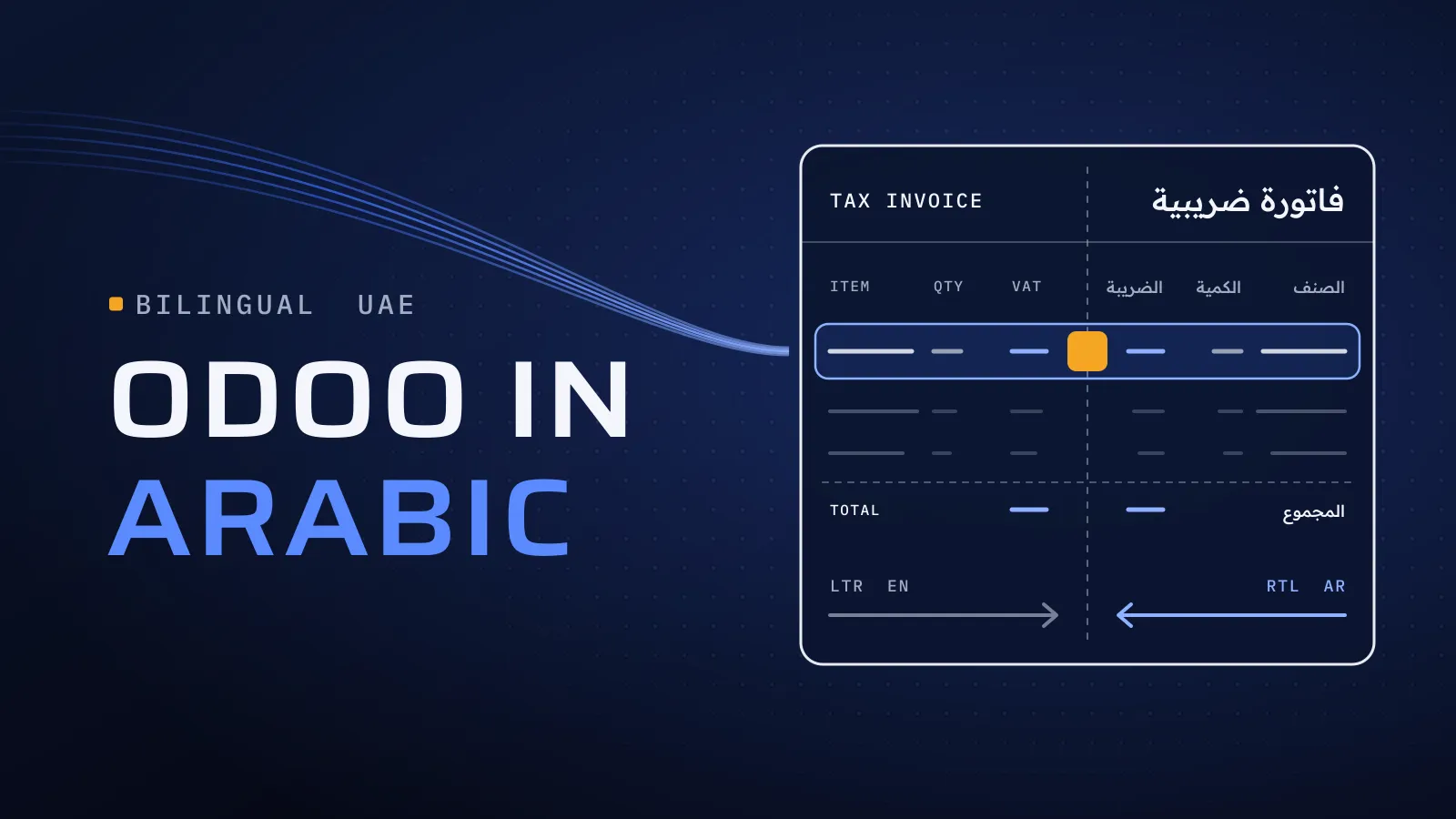
Odoo Arabic support decides whether your storekeepers, drivers and cashiers use the system or work around it. Odoo’s own screens switch to Arabic, right to left, in a click. What doesn’t switch is everything your business adds: product names, custom fields, extra modules and printed layouts. Settle those before go-live and each team works in its own language on the same records; leave them, and users meet half-English screens and invoices with English product lines.
Does Odoo work in Arabic?
Quick answer: Yes. Odoo ships Arabic for its standard apps, right to left, and each user picks a language. Bilingual tax invoices are a UAE localisation setting. You add the rest: Arabic names for products and other records, translations for custom and Apps Store modules, Arabic layouts for other documents, and a search rule your teams agree on.
Rolling Odoo out to Arabic-speaking teams? Tell us which teams will work in Arabic.
What a half-Arabic setup costs you
When Arabic stops halfway, people fall back on English labels they half-read, or on paper. A storekeeper who can’t find an item by its Arabic name picks the wrong one, and an Arabic-speaking customer receives a tax invoice with English product lines. Each workaround costs a few minutes a day, and the users who need Arabic most are the first to stop entering data.
What Odoo translates, and what it doesn’t
Take this table to whoever owns your rollout. Odoo’s translation files cover Odoo’s own texts; everything your business creates starts in the language it was typed in.
| Area | Arabic out of the box | What you add |
|---|---|---|
| Menus, screens and messages of the standard apps | Yes. Odoo 19’s public Arabic files for Invoicing, Sales, Inventory, Purchase, CRM and Point of Sale had almost every text translated when we checked on 27 October 2026 | A short list of terms your team says differently, corrected through an imported translation file |
| Screen layout | Right to left, switched by each user’s language | Nothing to set; check screens where long English codes sit inside Arabic text |
| Products, payment terms, units and categories | No: each starts in the language you typed | An Arabic name for each, entered with the translation button beside the field or imported in bulk |
| Customer and supplier names | One name per contact, never translated | A rule for whether you save names in Arabic or English |
| Custom modules | Only if the developer added an Arabic translation file | An Arabic file in each module, updated with every change |
| Apps Store modules | Depends on the vendor | A check for Arabic before you buy |
| Studio fields and email templates | No: labels and text start in the language you typed | The Arabic for each label, and an Arabic version of each template customers receive |
| Tax invoices | Arabic and English together, with the Gulf Cooperation Council Format setting | Arabic product names (next section) |
| Quotations, delivery notes and statements | Printed in the customer’s language, one language at a time | A bilingual layout where you want both on one page |
Custom modules are the row most often missed. Odoo’s guide to translating modules has the developer add a translation file for each language inside the module; without one, every field and button the module adds stays in English. Ask for the Arabic file as part of the module, not after it.
On terms: Odoo calls a quotation عرض سعر and a credit note إشعار دائن. Read the main screens with the people who will use them and list any word they would say differently; that list becomes your corrections and your training glossary.
Bilingual tax invoices: two details to check
The setting itself is covered in our Odoo VAT guide’s localisation table. Two details decide what the printed invoice says:
- The customer’s language comes first. Odoo prints each tax invoice in the language set on the customer, with the other language beside it: Arabic for customers set to English, English for customers set to Arabic. Customers imported in bulk take the language of the person importing them, so check them.
- Product lines take the Arabic from the product. Each line prints the product’s Arabic name above its English one. A product with no Arabic name prints in English only, so the Arabic half of the line stays empty.
Arabic reports and PDF layouts
Outside tax invoices, Odoo prints a document in one language, the customer’s. Three things to set up and check:
- A font with Arabic letters. In Configure Document Layout, Odoo offers Tajawal, which has Arabic and Latin letters, beside Lato, Roboto and others. Pick it before you judge any Arabic printout.
- Bilingual layouts for the documents customers keep. A quotation, delivery note or statement with both languages on one page is layout work, built and tested once per document. Payslips are the same; our Odoo payroll guide covers the UAE payroll side.
- Mixed lines. A line that mixes Arabic words, English codes and numbers, such as كرتون 12 × 500ml, can print in the wrong order inside right-to-left text. Print your real product names and read them on paper.
Arabic search in Odoo: three rules
Arabic search follows rules users only discover when they can’t find something:
- Translated names are searched in the searcher’s language. For products and other translated records, Odoo searches the name in the language of the person searching, falling back to English. Someone working in English won’t find a product by its Arabic name.
- Contact names are searched as saved. A customer has one name. Staff find it in the language it was saved in, or by email, reference or TRN, which Odoo also searches.
- Spellings must match. Odoo compares the letters as stored, so أحمد and احمد are different words to it, as are names ending in ة or ه.
What works: search products by internal reference, which is the same in every language; agree one spelling rule for Arabic names before you import contacts; and test search with real names from your own data.
Dates, the working week and Hijri
Odoo’s Arabic shows dates as day, month, year, and starts the week on Saturday. If your week runs Monday to Friday, change First Day of Week under Settings, Languages, Manage Languages, so date pickers and calendars start where your team’s week does.
Odoo has no Hijri calendar as standard: it stores and shows Gregorian dates. Apps Store modules add a Hijri date to screens or printouts, but they need Odoo.sh or your own server, since Odoo Online can’t run Apps Store modules. If one letter or contract needs the Hijri date, adding it to that document’s layout is usually the smaller job.
Training users in Arabic
- Train by role, in the language each group works in. Each user picks a language in their profile, as Odoo’s language settings describe, so a cashier can learn Point of Sale in Arabic while finance learns reporting in English.
- Use the words on the screen. Guides and screenshots for Arabic users come from the Arabic interface, with the glossary from your term list.
- Point key users to Arabic help. Odoo’s online documentation has an Arabic version, so key users can read the same help pages in Arabic.
The Odoo Arabic setup, step by step
- Add Arabic in Settings, then set it on each user who wants it and each customer who should receive Arabic first.
- Set the defaults: First Day of Week, Tajawal and the Gulf Cooperation Council Format.
- Add Arabic to your data: product names, payment terms, units and categories, imported in bulk.
- Translate what you added: custom and Apps Store modules, Studio labels, email templates and your corrected terms.
- Test with real users: search with real names, print every document you send and run a day’s work in Arabic on the test database.
Want a second pair of eyes on your Arabic setup? Send us your Odoo version, which teams will work in Arabic and one document you print in Arabic; a photo is enough. We reply with what is already translated, what needs adding and what to test before go-live. Ask us about Odoo in Arabic →
Not ready for a call? Ask for our company profile and we’ll send it to you.
Who sets it up
We implement Odoo for UAE businesses from Dubai Digital Park, and we support any Odoo in the UAE, including systems another company set up. Our core team are native Arabic speakers who work in English, so your Arabic screens, invoices and guides are read by people who read Arabic every day, and your specifications are written in clear English. Quality is built into every step: independent QA before each release, so someone who didn’t build a layout prints and reads it, and a dated plan in FloPlan, the delivery software we built and use ourselves, with the Arabic checks scheduled before go-live.
Outside Odoo, we build ERP software from scratch. Al-Mawared ERP is a web-based ERP we built for exchange companies across the MENA region. Talk to the team that built it: book a meeting.
Bring one Arabic document
Tell us which teams will work in Arabic, your Odoo version and hosting, and the documents you print. Arabic setup, translated data and bilingual layouts are part of our Odoo implementation services in the UAE.
Ask us about Odoo in Arabic → We ask about your goal, what you use today, your timing and who else should be involved. You leave with clear next steps. We reply by email first and set up a call only if you want one. Asking commits you to nothing, and we sign an NDA first if you ask.
Odoo’s language and module-translation documentation, its UAE localisation page and the Odoo 19 and 20 source code checked on 27 October 2026.
Frequently asked questions
Is Odoo fully translated into Arabic?
Its standard apps nearly are. When we checked Odoo 19's public translation files on 27 October 2026, the Arabic files for Invoicing, Sales, Inventory, Purchase, CRM and Point of Sale had almost every text translated. Your own data, custom modules and Apps Store modules are not covered by those files, so each needs its Arabic added. Do that before go-live and users see one language on every screen.
Can each user work in a different language?
Yes. Each user picks a language in their profile, or an administrator sets it for them. Your warehouse team can work in Arabic while finance works in English, on the same records. Printed documents follow the customer's language, not the user's, so set a language on every customer too.
Why can't our staff find a product by its Arabic name?
Because Odoo searches translated names in the language of the person searching, falling back to English. Someone working in English doesn't search the Arabic names at all. Search by internal reference, which is the same in every language, and test search with your own product list before go-live.
Does Odoo support Hijri dates?
Not as standard. Odoo stores and shows Gregorian dates. Apps Store modules add a Hijri date to the date picker or to printed documents, but they need Odoo.sh or your own server, because Odoo Online can't run them. If one document needs the Hijri date, it can be added to that document's layout and tested like any other layout change.
Which font should Arabic invoices and reports use?
One with Arabic letters. Odoo's Configure Document Layout offers Tajawal, a font with Arabic and Latin letters, beside Lato, Roboto and others. Choose it, print your own invoice, quotation and delivery note, and read the Arabic on paper, especially lines that mix Arabic, English codes and numbers.